Showing posts with label java. Show all posts

Thursday, January 10, 2013

How to using the WorldWind Java 0.2 SDK in Netbeans IDE 7.2.1


  • Visit http://goworldwind.org/ and do some research about what WW really is and why you should use it.
  • Follow the getting started tutorial to get familiar with the examples.
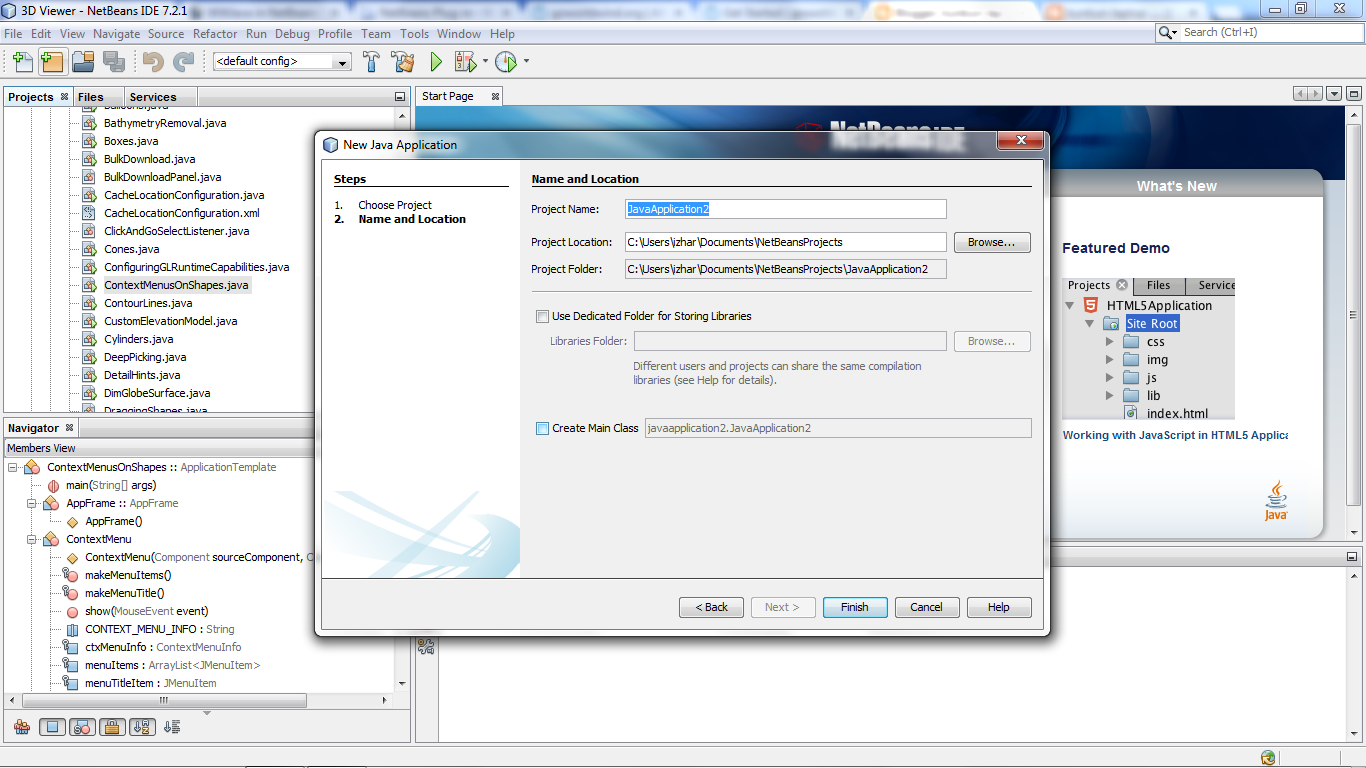
  • Open NetBeans and create a New Project using the "Java Application" template. Fill in the required details but uncheck the 'Create Main class' box. Your new project should reside in a clean directory.
  • In the src you downloaded from the release site and extracted, rename WorldWind's'build.xml' to something else (build_ww.xml) and copy all the WorldWind's unzipped content to your NetBeans project folder so that the src folders overlap. You should end up with a folder structure very similar to the WorldWind unzipped folder, plus a'nbproject' and a 'test' folders. The 'build.xml' file is the one created by NetBeans, not the one that came with the zip (which is why we renamed it earlier).
  • From NetBeans, you will notice that some folders/classes are marked with a red exclamation mark. We now need to tell the project about the required libraries. Right-click your project's node and select 'Properties' (typically the last menu item). Select the 'Libraries' node from the Categories tree and press the 'Add JAR/folder' button on the right. Keeping CTRL down, select the 'gluegen-rt.jar','jogl.jar', 'gdal.jar' and 'plugin.jar' that are now inside your project folder. Click 'ok'.

                                             
  • You can now run any of the examples by right-clicking them and selecting 'Run File' from the contextual menu.


Thanks. ;) http://forum.worldwindcentral.com/showthread.php?t=32347

Thursday, October 13, 2011

How to add BlackBerry Java Plug-in for Eclipse Update Site

Installation instructions

If you’re using Java® 2 SDK, Standard Edition v6.0, obtain Update 16 of the Java 2 SDK v6.0 from the Oracle® website before downloading the plug-in using the Eclipse Update Mechanism.

  1. From the Help menu, select Install New Software to open the Install window.
  2. Click the Add button:
    1. In the Add Site dialog, type the URLhttp://www.blackberry.com/go/eclipseUpdate/3.6/javainto the location text box and specify BlackBerry Java Plug-in Update Site in the name text box.
    2. Click the OK button, BlackBerry Update Site appears in the Available Software list.
  3. Select the BlackBerry Java Plug-in item and at least one BlackBerry Component Pack item you want to work on.
  4. Click the Next button.
  5. Click the Next button after reviewing the items to be installed.
  6. Check the I accept the terms of the license agreement radio button after reviewing licenses.
  7. Click the Finish button to begin installation.
  8. Note: you'll need to enter your BlackBerry® Developer Zone login ID and password in an authentication dialog. Due to security policy, you may be authenticated multiple times. If you don’t have a BlackBerry Developer Zone login, register for access to the BlackBerry Developer Zone.
  9. After successfully downloading the files, you’ll be prompted to restart the Eclipse Platform. Choose to restart the platform.

Software versions (new updates available as of May 31, 2011)

To verify you’re using the latest version of the BlackBerry Java Plug-in for Eclipse or BlackBerry Java SDK:

  1. In Eclipse, go to Help and select About Eclipse.
  2. Click on Installation Details.
  3. Under the Installed Software Tab, check to see if you have the latest versions:
    • BlackBerry Java SDK v7.0 (updated May 31, 2011)
    • BlackBerry Java SDK v5.0.0.25
    • BlackBerry Java SDK v4.7.0.57 (updated July 9, 2010)
    • BlackBerry Java SDK v4.6.1.49 (updated July 9, 2010)
    • BlackBerry Java SDK v4.6.0.23 (updated July 9, 2010)
    • BlackBerry Java SDK v4.5.0.28 (updated July 9, 2010)

Technical requirements

  • Eclipse 3.6 Helios
  • 32-bit Windows® XP or Windows 7 (Note: 64-bit versions require 32-bit Java and Eclipse)
  • Monitor with a resolution of 1024 x 768 or higher
  • PC with Intel® Pentium® 4 processor or compatible (2.5 GHz or higher, 2 GB RAM, 1.5 GB HD free)
  • Java SE Development Kit (JDK) 6, update 14 or later


kunkun-laptop .... ;)