Showing posts with label joomla. Show all posts

Wednesday, November 3, 2010

How to remove JPAGE_CURRENT_OF_TOTAL in Joomla 1.5

This is how typically it would look like:


<< Start < Prev 1 2 3 4 5 6 7 8 9 10 Next > End >>

JPAGE_CURRENT_OF_TOTAL

  1. Download a matching language pack for the version of Joomla you're working with.
  2. If the language pack is just not available yet, fix it manually:

    • Locate the main localization file - so if you have Finish installation it would be: \language\fi-FI\fi-FI.ini
    • Manually add the following line in to it:
      JPAGE_CURRENT_OF_TOTAL=Page %s of %s
      You probably will want to translate it to your own language before.

Tuesday, August 17, 2010

How to Fix for: Parse error: syntax error, unexpected $end in

Problem

The site was built using Joomla! 1.5, so I enabled debugging mode and set the error reporting level to maximum to know what is the problem.

Then this error was displayed when opening any page:

Parse error: syntax error, unexpected $end in filename:lineno


Solution

it was the index.php / template.php / etc file of the template, and after some debugging I found that the problem is the using of short php tags, like this:
< ?
The server was not configured to allow short tags.
For maximum compatibility, it is preferred to use full tags, like this:
< ?php
Hope this help you all!

How to Enable Legacy Mode in Joomla! 1.5

The future of Joomla! CMS, Jomla! version 1.5, has new framework with code based for the Joomla! core completely re-written and built with PHP 5. Thus, a lot of existing extensions, plugins, templates and modules for Joomla! version 1.0.x does not work or fail to work properly in the Joomla! 1.5, sometimes not even able to upload and install the package. Users will get error messages such as “Direct Access to this location is not allowed” and “Must Enable Legacy Mode In Global Config To Complete This Task.” Joomla! developers is kind enough to provide a legacy mode in Joomla! 1.5 that supports compatibility with extensions designed and developed for older version of Joomla.

So how to enable and switch on legacy mode in Joomla! 1.5? In early beta release of Joomla! 1.5 (e.g. beta1 and beta2), option to enable and turn on the legacy mode is part of the Global Configuration. However, in the latest RC release of Joomla! (i.e Joomla! 1.5RC3) and final gold release of Joomla! 1.5, the legacy mode support has been moved to be provided by plugin. Thus to enable the legacy mode, simply follow steps in trick below to publish the Legacy Mode plug-in.

  1. Login to Joomla! 1.5 Site Administrator panel (http://www.domain.com/administrator).
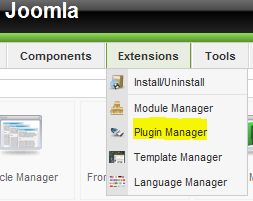
  2. Mouse over Extensions in the main horizontal menu, then click on Plugin Manager.

    Joomla Plugin Manager

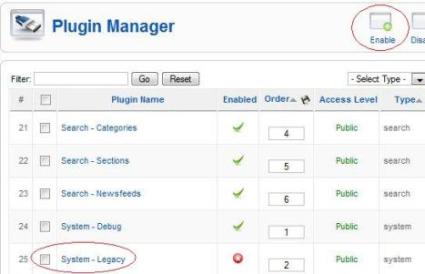
  3. Locate plugin named System – Legacy, and then click on the check box in front of it.
  4. Click on Enable button.

    Enable Joomla 1.5 Legacy Mode

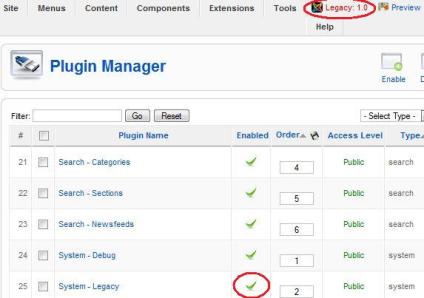
  5. Ensure that Legacy: 1.0 status appears on the top right corner, and the Enabled column for “System – Legacy” is ticked. The Legacy Mode has been enabled.

    Joomla! 1.5 Legacy Mode 1.0 Compatibility Mode

With Legacy Mode, users can now use extensions, modules, plugins and templates from Joomla! 1.0.x series in Joomla! 1.5 and ensure that the modules are working properly. Joomla! 1.5 now is compatible with Joomla! 1.0.

Note that if you don’t install and populate Joomla! with sample data when installing Joomla!, the default modules and plugins are not loaded into the Site Administrator Panel. If you cannot find the Legacy Module plugin, try to build the sample data again.

Thursday, January 7, 2010

How to include any module in Joomla 1.5

Let's take one example, our Google AdSense module. This can be placed in any module position of the template by default, but not within content. This tutorial shall now explain how to enable it (or any other module) within content in Joomla! 1.5.

STEP 1: Create a new copy of the Module just for in-content use.
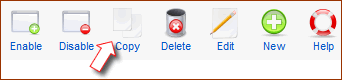
Create a copy of the Joomla module

Extensions > Module Manager. Check the checkbox before the module in question and click on "Copy" on the top right (see image).

The copy is placed just under the original in the same module position and is unpublished by default. It will be named "Copy of ...".

STEP 2: Open the Module that you just copied.
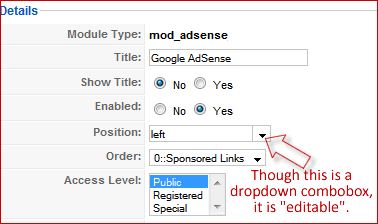
Edit the POSITION of the Joomla moduleNow just click on the name of the module (Copy of ...).

STEP 3: Change the "Module Position"

Here, we are going to do something very sleek. With the module opened, look at the left side of the screen. You will see a parameter named "Position". It will have a dropdown combobox in front of it. Joomla! developers have hidden a truly powerful option here. It is "editable". See picture on the right to get a clear idea. So what? Read on...

Let's edit the position name and "create" a new unique position just for in-content use, which will not be shown on the template elsewhere. Do not click on the arrow, but click directly within the textbox of that field and "delete" the content (using delete or backspace key). Now type a new name, let's say content_adsense125 (You can type any name you want, but this to me means that I am using this for showing AdSense ads, 125x125 size for in-content use).

Look at the next picture below for what it will look like. After making the other necessary changes to the module parameters on the right side, "Save" the module. This will now be saved in the "new" position that you just created.As it is a custom position, it will not show on the frontend. That was our purpose too, we want it to show only within content and only where we assign. See the right side ads for an example.
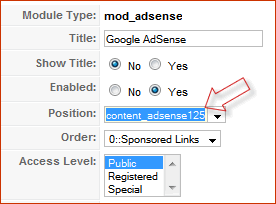
Edit the POSITION of the Joomla module

STEP 4: Go to the Plugin Manager

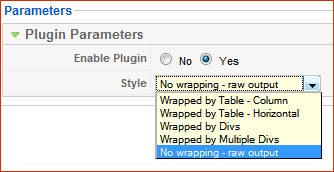
Change the Load Module Plugin ParameterExtensions > Plugin Manager. Look for a plugin named "Content - Load Module". Open it. On the right side, you will see a dropdown box. Click on its arrow and select "No wrapping - raw output" as shown in the next picture.

STEP 5. STEP 6, STEP 7...

Open your content item within which you want to show the module. In the desired location within the article, just type

LOAD the module now

where"loadposition" is a constant to call the plugin that we just edited in step 4 and "module" is the variable module position to be called, in this case we should change it to content_adsense125 as done in step 3. As indicated above, change only the blue text and leave the red untouched.

Just one word of caution, do not use standard positions like "left" or "user1" inside content. They may load ALL the modules in that position into that content.

From now on, you should be able to place any module in any content of your choice.


Tq http://www.joomlaspan.com

Enjoy ubuntu... ;)

kunkun-laptop .... ;)