Showing posts with label php. Show all posts

Monday, January 24, 2011

PHP mysql_real_escape_string() function

string mysql_real_escape_string ( string $unescaped_string [, resource $link_identifier ] )

  • Escapes special characters in the unescaped_string, taking into account the current character set of the connection so that it is safe to place it in a mysql_query(). If binary data is to be inserted, this function must be used.
  • mysql_real_escape_string() calls MySQL's library function mysql_real_escape_string, which prepends backslashes to the following characters: \x00, \n, \r, \, ', " and \x1a.
Example

function check_input($value)
{
// Stripslashes
if (get_magic_quotes_gpc())
{
$value = stripslashes($value);
}
// Quote if not a number
if (!is_numeric($value))
{
$value = "'" . mysql_real_escape_string($value) . "'";
}
return $value;
}

$con = mysql_connect("localhost", "root", "password");
if (!$con)
{
die('Could not connect: ' . mysql_error());
}

// Make a safe SQL
$user = check_input($_POST['user']);
$pwd = check_input($_POST['pwd']);
$sql = "SELECT * FROM users WHERE user=$user AND password=$pwd";

mysql_query($sql);

mysql_close($con);
?>

Saturday, January 30, 2010

How to install LAMP on ubuntu

Start install Apache:
1. Open the terminal (we will be using it through most of my guide) from Applications > Accessories > Terminal

2. Install apache2 using apt-get by typing the following

Quote : sudo apt-get install apache2

Note that you should know the root password.
Now everything should be downloaded and installed automatically.

To start/stop apache2 write:

Quote : sudo /etc/init.d/apache2 start
Quote : sudo /etc/init.d/apache2 stop

Your www folder should be in: /var/www/

Then install PHP / PHP5:
1. Also in terminal write:

Quote : sudo apt-get install php5 libapache2-mod-php5

Then install MySQL:
1. In terminal execute :

Quote : sudo apt-get install mysql-server

2. (optional) If you are running a server you should probably bind your address by editing bind-address in /etc/mysql/my.cnf and replacing its value (127.0.0.1) by your IP address

3. set your root password (although mysql should ask you about that when installing)

mysql> SET PASSWORD FOR ‘root’@'localhost’ = PASSWORD(‘xxxxxx’);

4. Try running it

mysql -u root -p xxx

where xxx is your password.
Note: You can install PHPMyAdmin for a graphical user interface of MySQL by executing

Qoute : sudo apt-get install libapache2-mod-auth-mysql php5-mysql phpmyadmin


Enjoy ubuntu... ;)

Thursday, January 7, 2010

How to include any module in Joomla 1.5

Let's take one example, our Google AdSense module. This can be placed in any module position of the template by default, but not within content. This tutorial shall now explain how to enable it (or any other module) within content in Joomla! 1.5.

STEP 1: Create a new copy of the Module just for in-content use.

Create a copy of the Joomla module

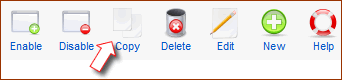
Extensions > Module Manager. Check the checkbox before the module in question and click on "Copy" on the top right (see image).

The copy is placed just under the original in the same module position and is unpublished by default. It will be named "Copy of ...".

STEP 2: Open the Module that you just copied.

Edit the POSITION of the Joomla moduleNow just click on the name of the module (Copy of ...).
STEP 3: Change the "Module Position"

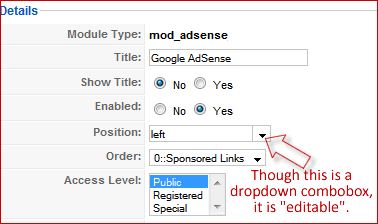
Here, we are going to do something very sleek. With the module opened, look at the left side of the screen. You will see a parameter named "Position". It will have a dropdown combobox in front of it. Joomla! developers have hidden a truly powerful option here. It is "editable". See picture on the right to get a clear idea. So what? Read on...

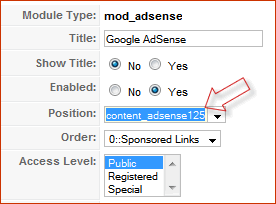
Let's edit the position name and "create" a new unique position just for in-content use, which will not be shown on the template elsewhere. Do not click on the arrow, but click directly within the textbox of that field and "delete" the content (using delete or backspace key). Now type a new name, let's say content_adsense125 (You can type any name you want, but this to me means that I am using this for showing AdSense ads, 125x125 size for in-content use).

Look at the next picture below for what it will look like. After making the other necessary changes to the module parameters on the right side, "Save" the module. This will now be saved in the "new" position that you just created.As it is a custom position, it will not show on the frontend. That was our purpose too, we want it to show only within content and only where we assign. See the right side ads for an example.

Edit the POSITION of the Joomla module

STEP 4: Go to the Plugin Manager

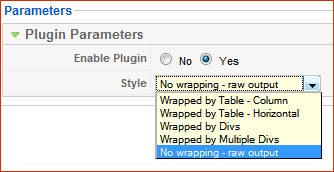
Change the Load Module Plugin ParameterExtensions > Plugin Manager. Look for a plugin named "Content - Load Module". Open it. On the right side, you will see a dropdown box. Click on its arrow and select "No wrapping - raw output" as shown in the next picture.

STEP 5. STEP 6, STEP 7...

Open your content item within which you want to show the module. In the desired location within the article, just type

LOAD the module now

where"loadposition" is a constant to call the plugin that we just edited in step 4 and "module" is the variable module position to be called, in this case we should change it to content_adsense125 as done in step 3. As indicated above, change only the blue text and leave the red untouched.

Just one word of caution, do not use standard positions like "left" or "user1" inside content. They may load ALL the modules in that position into that content.

From now on, you should be able to place any module in any content of your choice.


Tq http://www.joomlaspan.com

Enjoy ubuntu... ;)

kunkun-laptop .... ;)