Showing posts with label secure. Show all posts

Tuesday, September 6, 2011

How to obtain a digital certificate for free

About digital certificates

A digital or SSL certificate consists of two encryption keys, one public and one private, a very common use for digital certificates is to encrypt data exchanges in between a user Internet browser and any e-commerce website but it can also be used to sign documents, encrypt and digitally sign email messages and identify yourself online. Once a digital certificate has been installed in your Internet browser or email client, it is easier to use than encryption software, many users are not even aware they are using it, if the SSL certificate is personalized a password might be asked before using it.

Typical digital certificates will contain a serial number, signature algorithm, issuing authority, valid from and expiry date, public key and a hashed number to guarantee that the key has not been tampered with.

Places to obtain a free digital certificate

CAcert: To be issued an SSL X.509 standard certificate you are asked you to join the CAcert community filling in an online form, in between others you can use CAcert certificates to secure websites, digitally signing or encrypting emails and files.

GetaCert: Not a Certificate Authority (CA), GetaCert appears to be a website using OpenSSL to create a digital certificates online, they can be issued for use with email and websites, all of their certificates are valid for 10 years and wildcards are supported.

StartSSL: Issuing free Class 1 (for individuals) SSL certificates valid for one year, renewable after expiration, security is as good as StartSSL paid for digital certificates but with some limitations like no wildcards allowed and it doesn’t hold identification details.

If you only need a digital certificate to sign and encrypt email you can get Comodo email SSL certificate.

Types of basic digital certificates

  • Personal certificate: It works as a digital ID guaranteeing that the person is not someone else, a personal certificate can be used to identify yourself over the Internet with a company or Government agency, digitally sign an email message or a PDF file, a password will normally be asked when carrying out these tasks, using the something you have and something you know security model.
Diagram digital certificate encryption

Diagram digital certificate encryption

  • Server certificate: It identifies a user when establishing a connection before transmitting any information, email and Usenet servers use a server certificate when authentication takes place via SSL.
  • Software certificate: It verifies software before installing it in your computer by checking the code digital signature making sure the program has not been replaced by malware having been signed by a genuine developer, useful when downloading software from the Internet.

Unrecognised digital certificates warnings

All Internet browsers come with digital certificates installed, these are issued by certification authorities like VeriSign or GeoTrust, when the browser comes across a website using a digital certificate which public key is not found in the browser you will get a not recognised certificate warning, this does not mean the site is not safe, it only means one of the key pairs has not been stored in the browser.

It is impossible to have every single company SSL certificate stored in the browser, when you get this kind of warning you should check the digital certificate making sure it is not a man in the middle attack by looking at its properties, when satisfied that everything looks correct, install it, after that you will not get any more security warnings when visiting that site.
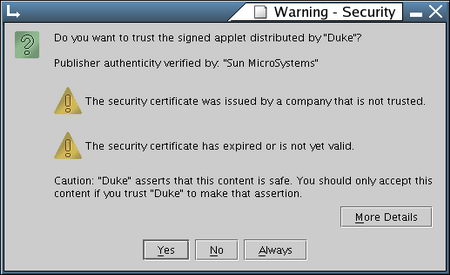
Digital certificate security warning

Digital certificate security warning

When you install software you could find Windows warning you that the driver has not been digitally signed, Microsoft charges a huge amount for this ‘”privilege” and not all developers can’t afford it, it doesn’t necessarily mean the software is dangerous, it only means it has not been approved by Microsoft.

How to make your own SSL certificate

An alternative to companies issuing free SSL certificates is to create your own Certificate Authority or self-signed digital certificate using OpenSSL, an open source implementation of SSL and TLS, any decent Linux distribution will come with OpenSSL installed, you will need some basic Unix knowledge, go to the command line generate an RSA private key, generate a Certificate Signing Request (CSR) and generate a self-signed certificate, for the necessary commands to do this type man openssl at the Linux command prompt.

You can use OpenSSL and other Unix utilities in Windows using Cygwin, a Unix framework for Windows, it is beyond the scope of this article to explain how Cygwin works.


Tq http://www.hacker10.com/

Wednesday, August 24, 2011

How to Generate An SSL Certificate For Your Website

If you run a website which you need to serve via SSL, then this article is for you. The procedure for making your website SSL ready is quite simple. It involves -

  1. Generating a private key.
  2. Generating a Certificate Signing Request (CSR).
  3. Getting the CSR signed by a certificate authority - Verisign, Go Daddy, Thawt etc. (Be ready to shell out some money here).
  4. Uploading the private key, the CSR, and the certificate to your website.
  5. Configuring the SSL version of your site. And finally ...
  6. Enabling the SSL for your website.

ScoutApp has a nice article that explains the above steps in detail. Check it out.

Tq http://linuxhelp.blogspot.com

Thursday, July 28, 2011

How to Use an HTTPS-Encrypted Connection When Browsing

When you're browsing the Web, protect yourself by using HTTPS (Hypertext Transfer Protocol Secure) whenever possible. HTTPS encrypts the connection between your PC and the Website you're visiting. Though HTTPS doesn't guarantee that a site is secure, it can help prevent other parties from hacking into the network and gaining access to your account.

Many sites use HTTPS by default: When you purchase an item online or log in to online banking, for instance, your browser will probably connect to the site via HTTPS automatically. But you can go one step further by enabling HTTPS on Facebook, Twitter, and Gmail.

To use Facebook's HTTPS feature, log in to Facebook and click Accountin the upper-right corner. Select Account Settings from the drop-down menu, and look for ‘Account Security' on the resulting page. Under the Account Security heading, clickChange, check the box next to Browse Facebook on a secure connection (https) whenever possible, and click Save.

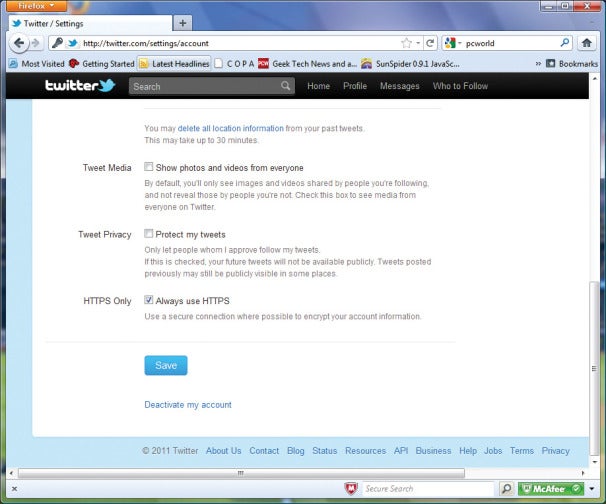
Use HTTPS security.You can easily enable HTTPS on sites such as Twitter and Facebook and on services such as Gmail to introduce an extra level of security.For Twitter, first log in to your account. If you're using the new Twitter interface, click your account name in the upper-right part of the screen, and select settings. (If you're still using the old Twitter interface, click the Settings link in the upper right of the window.) From there, scroll down to the bottom of the resulting page, check the box next to Always use HTTPS, and click Save.

To enable HTTPS on Gmail, log in to your account, click the gear icon in the upper-right corner, and select Mail Settings from the drop-down menu. Next, under the Browser Connection heading, select the button labeled Always use https. When you're all set, scroll to the bottom of the page and click Save Changes. To learn more about Gmail security, see Google's Gmail Security Checklist.


Tq http://www.pcworld.com

Monday, October 11, 2010

How to Set Up SSL on IIS 7

Introduction

The steps for configuring Secure Sockets Layer (SSL) for a site are the same in IIS 7 and IIS 6.0, and include the following:

  • Get an appropriate certificate.
  • Create an HTTPS binding on a site.
  • Test by making a request to the site.
  • Optionally configure SSL options, that is, by making SSL a requirement.

This document provides some basic information on SSL, then shows how to enable SSL in many several different ways:

  • Using IIS Manager.
  • Using the AppCmd.exe command line tool.
  • Programmatically through Microsoft.Web.Administration.
  • Using WMI scripts.

This article contains the following sections:

SSL Configuration

The implementation of SSL changed from IIS 6.0 to IIS 7. In IIS 6.0 on Windows Server 2003, all SSL configuration was stored in the IIS metabase, and encryption/decryption occured in User mode (requiring a lot of kernel/user mode transitions). In IIS 7, HTTP.sys handles SSL encryption/decryption in kernel mode, resulting in up to 20% better performance for secure connections in IIS 7 than that experienced in IIS 6.0.

Using SSL in kernel mode requires storing SSL binding information in two places. First, the binding is stored in %windir%\System32\inetsrv\config\applicationHost.config for your site. When the site starts, IIS 7 sends the binding to HTTP.sys, and HTTP.sys starts listening for requests on the specified IP:Port (this works for all bindings). Second, the SSL configuration associated with the binding is stored in the HTTP.sys configuration. Use the netsh command at a command prompt to view SSL binding configuration stored in HTTP.sys as in the following example:

netsh http show sslcert

When a client connects and initiates an SSL negotiation, HTTP.sys looks in its SSL configuration for the IP:Port pair to which the client connected. The HTTP.sys SSL configuration must include a certificate hash and the name of the certificate store before the SSL negotiation will succeed.

Troubleshooting Tip: If you're having trouble with an SSL binding, verify that the binding is configured in ApplicationHost.config, and that the HTTP.sys store contains a valid certificate hash and store name for the binding.

Choosing a Certificate

When choosing a certificate, consider the following: Do you want end users to be able to verify your server's identity with your certificate? If yes, then either create a certificate request and send that request to a known certificate authority (CA) such as VeriSign or GeoTrust, or obtain a certificate from an online CA in your intranet domain. There are three things that a browser usually verifies in a server certificate:

  1. That the current date and time is within the "Valid from" and "Valid to" date range on the certificate.
  2. That the certificate's "Common Name" (CN) matches the host header in the request. For example, if the client is making a request to http://www.contoso.com/, then the CN must also be http://www.contoso.com/.
  3. That the issuer of the certificate is a known and trusted CA.

If one or more of these checks fails, the browser prompts the user with warnings. If you have an Internet site or an intranet site where your end users are not people you know personally, then you should always ensure that these three parameters are valid.

Self-signed certificates are certificates created on your computer. They're useful in environments where it's not important for an end user to trust your server, such as a test environment.

Using AppCmd

You cannnot request or create a certificate by using AppCmd.exe. You also cannot use AppCmd.exe to create an SSL binding.

Configure SSL Settings

You can use AppCmd.exe to configure a site to accept only server HTTPS connections by modifying the sslFlags attribute in the Access section. For example, you can configure this setting for the "Default Web Site" in the ApplicationHost.config file (for example, commitPath:APPHOST) by using the following command:

%windir%\system32\inetsrv>AppCmd set config "Default Web Site" -commitPath:APPHOST -section:access -sslFlags:Ssl

If successful, the following message is displayed:

Applied configuration changes to section "system.webServer/security/access" for "MACHINE/WEBROOT/APPHOST/Default Web Site" at configuration commit path "MACHINE/WEBROOT/APPHOST"

Note: To require 128-bit SSL, change the sslFlags value to Ssl128.

The following example demonstrates how to view the section settings for the Default Web Site. The sslFlags attribute has been set successfully.

%windir%\system32\inetsrv>AppCmd list config "Default Web Site" -section:access

Executing the command results in the following entry in the ApplicationHost.config file:

<system.webServer>

<security>
<access flags="Script, Read" sslFlags="Ssl" />
security>
system.webServer>

Using WMI

You cannot request or create a certificate by using the WebAdministration WMI namespace.

Create an SSL Binding

The following script demonstrates how to create a new SSL binding and how to add the appropriate configuration for both HTTP.sys and IIS 7:

Set oIIS = GetObject("winmgmts:root\WebAdministration")

'''''''''''''''''''''''''''''''''''''''''''''
' CREATE SSL BINDING
'''''''''''''''''''''''''''''''''''''''''''''

oIIS.Get("SSLBinding").Create _
"*", 443, "4dc67e0ca1d9ac7dd4efb3daaeb15d708c9184f8", "MY"
'''''''''''''''''''''''''''''''''''''''''''''

' ADD SSL BINDING TO SITE
'''''''''''''''''''''''''''''''''''''''''''''

Set oBinding = oIIS.Get("BindingElement").SpawnInstance_
oBinding.BindingInformation = "*:443:"
oBinding.Protocol = "https"

Set oSite = oIIS.Get("Site.Name='Default Web Site'")
arrBindings = oSite.Bindings
ReDim Preserve arrBindings(UBound(arrBindings) + 1)
Set arrBindings(UBound(arrBindings)) = oBinding
oSite.Bindings = arrBindings
Set oPath = oSite.Put_

Note: The certificate hash and store must reference a real, functional certificate on your server. If the certificate hash and/or store name are bogus, an error is returned.

Configure SSL Settings

The following script demonstrates how to set SSL settings by using the IIS 7 WMI provider. You can find this value in the IIS_Schema.xml file.

CONST SSL = 8
Set oIIS = GetObject("winmgmts:root\WebAdministration")
Set oSection = oIIS.Get( _
"AccessSection.Path='MACHINE/WEBROOT/APPHOST',Location='Default Web Site'")
oSection.SslFlags = oSection.SslFlags OR SSL
oSection.Put_

IIS Manager

Obtain a Certificate

Select the server node in the treeview and double-click the Server Certificates feature in the listview:

Click Create Self-Signed Certificate... in the Actions pane.

Enter a friendly name for the new certificate and click OK.

Now you have a self-signed certificate. The certificate is marked for "Server Authentication" use; that is, it uses as a server-side certificate for HTTP SSL encryption and for authenticating the identity of the server.

Create an SSL Binding

Select a site in the tree view and click Bindings... in the Actions pane. This brings up the bindings editor that lets you create, edit, and delete bindings for your Web site. Click Add... to add your new SSL binding to the site.

The default settings for a new binding are set to HTTP on port 80. Select https in the Type drop-down list. Select the self-signed certificate you created in the previous section from the SSL Certificate drop-down list and then click OK.


Now you have a new SSL binding on your site and all that remains is to verify that it works.

Verify the SSL Binding

In the Actions pane, under Browse Web Site, click the link associated with the binding you just created.

Internet Explorere (IE) 7 will display an error page because the self-signed certificate was issued by your computer, not by a trusted Certificate Authority (CA). IE 7 will trust the certificate if you add it to the list of Trusted Root Certification Authorities in the certificates store it on the local computer, or in Group Policy for the domain.
Click Continue to this website (not recommended).

Configure SSL Settings

Configure SSL settings if you want your site to require SSL, or to interact in a specific way with client certificates. Click the site node in the tree view to go back to the site's home page. Double-click the SSL Settings feature in the middle pane.


Summary

In this walkthrough, we successfully used the command-line tool AppCmd.exe, the scripting provider WMI, and IIS Manager to set up SSL on IIS 7.

Wednesday, October 6, 2010

Howto Setup Syslog Server in Ubuntu using Apache2

will show you how to setup Syslog Server using Apache2 in Ubuntu Linux.

Make sure you set a static IP address in Ubuntu. Edit this file:
#vi /etc/network/interfaces

This is your network configuration file(/etc/network/interfaces):
# This file describes the network interfaces available on your system
# and how to activate them. For more information, see interfaces(5).

# The loopback network interface

auto lo
iface lo inet loopback

# The primary network interface
auto eth0
iface eth0 inet static
address 192.168.1.10
netmask 255.255.255.0
network 192.168.1.0
broadcast 192.168.1.255
gateway 192.168.1.1


After that, you need to prepare your Syslog Server:
#mkdir /logs
#vi /etc/syslog.conf
I logged everythings under folder/logs/logger.log. This is my syslog.conf file:
*.* /logs/logger.log

If you like to log everything from auth, cron, lpr error and only syslogs warnings then you have to add next lines to /etc/syslog.conf.
auth.* /logs/logger.log
cron.* /logs/logger.log
kern.* /logs/logger.log
lpr.3 /logs/logger.log
syslog.4 /logs/logger.log

Edit ksyslogd file (/etc/init.d/ksyslogd)
#vi /etc/init.d/ksyslogd

You need to change this line SYSLOGD=”” to SYSLOGD=”-r -m0”

Restart your network:

#/etc/init.d/networking restart

After that, install Apache2
#apt-get install apache2 php5 libapache2-mod-php5 mysql-server mysql-client php5-mysql

Check your hostname (/etc/hostname) and make sure
you have to put your local IP address in /etc/hosts. This is my /etc/hosts file:
127.0.0.1 localhost squid.cybersp.com
127.0.1.1 ubuntu
192.168.1.10 squid squid.cybersp.com
192.168.1.11 squid squid.cybersp.com

Modify your /etc/apache2/ports.conf and i decided to host on port 8080.

And go to apache2 site-available directory:
#cd /etc/apache2/sites-available
#touch squid.cybersp.com


Now edit squid.cybersp.com file
#vi /etc/apache2/sites-available/squid.cybersp.com

and make sure it looks like this:

ServerAdmin izhar@cybersp.com
ServerAlias squid.cybersp.com
DirectoryIndex index.php
DocumentRoot /logs

Ok, now go to sites-enabled directory:

#cd /etc/apache2/sites-enabled
#ln -s /etc/apache2/sites-available/squid.cybersp.com squid.cybersp.com

Go to /logs directory and create an index.php file:

#cd /logs
#touch index.php
#vi index.php

This is my index.php under /logs directory:


Now, restart your Apache:

#/etc/init.d/apache2 force-reload

Try to visit your Browser:

http://192.168.1.10:8080

Thursday, July 22, 2010

HowTo: Secure your Ubuntu Apache Web Server

Setting up a web server with Apache on a Linux distribution is a very quick process, however to make it a secure setup takes some work. This article will show you how to make your Apache web server more secure from an attack by effectively using Access control and authentication strategies.

All the examples below assumes that you are using Ubuntu 7.10 with a basic Apache configuration setup. However, these examples will help any user running an Apache server to make it more secure since the concepts will still apply. This HOWTO should be used on a test server then once that is secure migrated to a production web server.

File Permissions and Access Control

Users and groups:

One of the first things to ensure is that Apache does not run as root because if Apache is cracked then an attacker could get control of the root account. Lets take a look at what user and group Apache is running as.

Run the following command:

# ps auwwfx | grep apache www-data 25675 0.0 0.0 10348 508 ? S Jan21 0:00 \_ /usr/sbin/apache2 -k start
www-data 25686 0.0 0.2 231816 2208 ? Sl Jan21 0:00 \_ /usr/sbin/apache2 -k start
www-data 25688 0.0 0.2 231816 2200 ? Sl Jan21 0:00 \_ /usr/sbin/apache2 -k start

As you can see www-data is the user running Apache. However if it's not then you need to edit your Apache configurations and create a new user and group by:

# groupadd www-data
# useradd -g www-data www-data
# vi /etc/apache2/apache2.conf

Change:

User root
Group root

To:

User www-data
Group www-data

Do a reload to make sure the changes take effect:

# /etc/init.d/apache2 reload

Permissions to serve files:

One of the most overlooked security practices is correctly using the chmod command. For example, we just created a index.cgi in our Apache html root directory but when we go to open the file in our browser we get the error message permission denied. To get our index.cgi file working we do a chmod 777 index.cgi. Before you try this, every Apache administrator should think to themselves' is this secure? The answer should be NO! But how do we make the permissions secure enough and allow the index.cgi script to work?

chmod:

Apache needs to have permission to execute the index.cgi file. However, we don't want everyone to read and write to index.cgi. The owner of the file should have permission to read and write to the file. We do this by:

# chmod 755 index.cgi

Files outside the web root should not be served:

It's very important to have the following lines in your apache.conf:


Options FollowSymLinks
AllowOverride None

Notes
1.The above lines prevent Apache from having access to files outside of its web root.
2.Some distributions have better default security configuration then others. EnGarde Secure Linux is one example where they include the above lines in their Apache configuration file by default.

We don't want users running CGI scripts anywhere on the filesystem but we do need them to run in the web root. The solution to this problem is the "Options ExecCGI" directive.

Example:
Add the following lines to /etc/apache2/apache2.conf:


AllowOverride None
Options ExecCGI
Order allow,deny
Allow from all

Reload apache:

# /etc/init.d/apache2 reload

What if your have resources that should only be accessed by a certain network or IP address?
A solution to this problem is using our Apache configuration to enforce it for you.

Example only allow access to network 192.168.0.0.

Change the following lines in your /etc/apache2/apache2.conf:


AllowOverride None
Options ExecCGI
Order allow,deny
Allow from all

To:


AllowOverride None
Options ExecCGI
Order Deny,Allow
Deny from all
Allow from 192.168.0.0/16

Do a reload to make sure the changes take effect:

# /etc/init.d/apache2 reload

Now only users on you internal network can run CGI script in "/home/username/public_html/cgi-bin"

Authentication

How can we allow only users with the correct password and username to have access to a part of our web root? The following steps will show you how to do this securely.

Basic authentication:

Enable .htaccess

# vi /etc/apache2/apache2.conf

Change:

AllowOverride None

To:

AllowOverride AuthConfig

Do a reload to make sure the changes take effect:

# sudo /etc/init.d/apache2 reload

Create a password file:

# mkdir /var/www/misc
# chmod a+rx /var/www/misc
# cd /var/www/misc
# htpasswd -bc private.passwords username password
Adding password for user username

Create .htaccess

# cd /home/username/public_html/cgi-bin
# vi .htaccess

Add the below in .htaccess

AuthName My Private Area"
AuthType Basic
AuthUserFile /var/www/misc/private.passwords
AuthGroupFile /dev/null require valid-user

Change:


AllowOverride None
Options ExecCGI
Order Deny,Allow
Deny from all
Allow from 192.168.0.0/16

To:


AllowOverride .htaccess
Options ExecCGI
Order Deny,Allow
Deny from all
Allow from 192.168.0.0/16

Do a reload to make sure the changes take effect:

# /etc/init.d/apache2 reload

Digest authentication:

Another method for authentication is called digest authentication. With digest authentication your password is never sent across the network in the clear because they are always transmitted as an MD5 digest of the user's password. This way passwords cannot be determined by sniffing network traffic:

Create a password file:

# mkdir /var/www/misc
# chmod a+rx /var/www/misc
# cd /var/www/misc
# htdigest -c private.passwords realm username
Adding password for username in realm realm.
New password:

Create .htaccess

# cd /home/username/public_html/cgi-bin
# vi .htaccess

Add the below in .htaccess

AuthName "My Private Area"
AuthType Digest
AuthUserFile /var/www/misc/private.passwords
AuthGroupFile /dev/null require valid-user


Tq http://www.linuxsecurity.com/content/view/133913/171/

Enjoy ubuntu... ;)

kunkun-laptop .... ;)